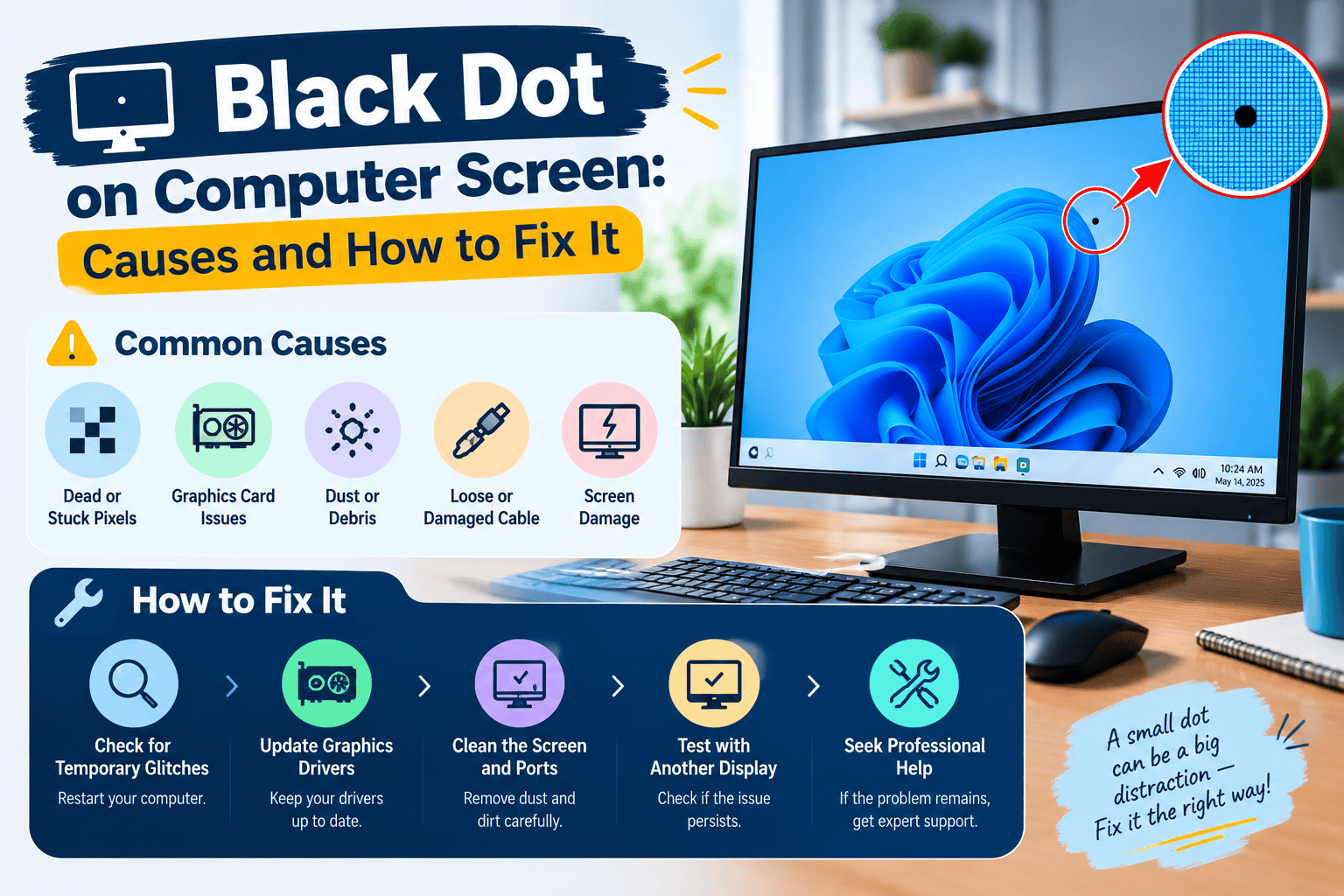
A black dot on computer screen can appear suddenly and make you worry about expensive repairs. However, not every dark spot means your monitor or laptop display is damaged.
In many cases, the issue is caused by simple dust, a stuck pixel, a dead pixel, a loose cable, or minor display damage. Identifying the exact cause is the first step before considering a screen replacement.
This guide explains why black dots appear on computer screens, how to troubleshoot them, and when professional repair may be required.
What Causes a Black Dot on a Computer Screen?
A black spot on your monitor or laptop display usually happens because of one of these common reasons:
1. Dirt, Dust, or Surface Debris
At times, a black dot may not be within the display panel. Particles of dust, fingerprints, solidified liquids, or foreign matters can gather on the screen and resemble a defect.
Prior to going for more complicated repairs, cleanse the screen with a microfiber cloth. Do not apply liquid directly to the screen as it might cause harm to its protective surface.
2. Dead Pixel or Stuck Pixel
Modern monitors consist of millions of pixel units that form pictures. When one or more pixels do not function properly, they can show up as dots.
Dead Pixel:
A dead pixel usually manifests itself as a fixed black dot because it has stopped getting power.
Stuck Pixel:
A stuck pixel is still turned on but shows one particular color which may be red, green, blue, or white.
Generally, fixing dead pixels is not possible, whereas stuck pixels can fix themselves sometimes by using pixel repair software or other tools.
Dead Pixel vs Stuck Pixel
Feature | Dead Pixel | Stuck Pixel |
Appearance | Permanently black across all backgrounds and colors | Frozen on a single bright color — red, green, or blue |
Cause | The sub-pixel receives no power, or its transistor has failed | The sub-pixel is receiving power but is stuck in an “on” state |
Fixability | Extremely difficult to repair; software fixes rarely work | Often fixable with pixel-refresh software or gentle pressure |
3. Physical Screen Damage
A dark blotch on the screen that resembles liquid ink may signal some damage to the inner layer of the display.
Some common causes of such damage include:
– Dropping the laptop
– Pressuring the screen
– Hitting the screen with/to something
– Cracks in the LCD layers
Usually, physical damages cannot be remedied through software; thus, a broken display must be replaced.
4. Loose or Damaged Display Cable
For desktop monitors, faulty HDMI, DisplayPort, or VGA cables can create display problems.
A damaged connection may cause:
- Black blocks
- Flickering
- Missing areas on the screen
- Random display errors
How to Fix a Black Dot on a Computer Screen
Before going ahead with replacing your display, look into the following diagnostic measures.
Step 1: Clean the Screen Carefully
Put off your computer and unplug the monitor from the outlet.
Take a new microfiber cloth and wipe the affected area of the screen properly. The black dot must disappear after this cleaning process.
Step 2: Determine whether the problem is pixel related
Change the background of your desktop to other color palettes like white, red, blue, or green.
If the dot is still present in the same spot after this, then it means that the dot is a problem of the pixel.
You can use other programs such as JScreenFix that also provide solutions for stuck pixels.
Step 3: Try a gentle solution for refreshing the pixel
You can only use this solution for the pixels that have stuck.
Switch off the display for the time being.
Take a microfiber cloth and simply squeeze the affected area.
Switch the monitor back on to see what happened.
Make sure not to apply much pressure as it may distort or even break the screen.
Step 4: Test Another Monitor or Cable
Connect your computer to another display.
If the black dot disappears, your original monitor may have a panel issue.
If the problem appears on another display, the graphics card or software drivers may be responsible.
Can a Dead Pixel Be Fixed?
The occurrence of a real dead pixel is due to the malfunction of hardware in the display screen. No software application can help repair circuits of damaged pixels.
Though some stuck pixels may be fixed using pixel-refresh tools to change the colors.
If your product is still under warranty, look for the company’s policy on replacing dead pixels.
Learn more about dead pixel problems and possible solutions.
When Should You Replace the Screen?
You may need a screen replacement if:
- The black spot is growing over time
- The display has cracks
- Dark patches spread like ink
- Multiple pixels are failing
- The screen affects daily usage
A single dead pixel does not always require replacement if the monitor works normally.
Final Thoughts
A black spot on the screen does not necessarily imply that the monitor is broken completely.
You can start with some easy procedures such as checking the connection, trying out different backgrounds, cleaning the screen, and connecting another display.
If the dot is fixed and doesn’t move when you change the image on your monitor, it’s probably a dead pixel or an issue with your display hardware that you need to deal with.
Frequently Asked Questions
Can dust cause a black dot on a computer screen?
Yes. Surface dust or debris can look like a black spot and can often be removed by cleaning the screen.
Is a black dot always a dead pixel?
No. It can also be caused by dirt, cable issues, or physical screen damage.
Can dead pixels spread?
A single dead pixel usually does not spread, but physical display damage can become worse over time.
Can I fix a stuck pixel at home?
Sometimes. Pixel-refresh tools may help stuck pixels, but results are not guaranteed.
Should I replace my monitor because of one black dot?
Not always. If the display works properly, you can continue using it unless the issue becomes distracting.